Custom fields
Give every card on a board the same labeled slots, like INT/EXT or POV, fill them in per card, and filter the board by them.
Tags are loose labels. Fields are for the structured facts you track on every card: whether a scene is interior or exterior, whose point of view it's in, which act it belongs to. Set up a field once on a board and every card on that board gets a slot for it.
What a field is
A field has a name and a type. The board holds the list of fields; each card holds its own values. A card doesn't have to fill in every field. Leave one blank and it simply doesn't show.
Fields belong to a board, the same way tags do. Your screenplay's INT/EXT field won't appear on your recipes board.
The four types
- Text: a short line of text, up to 200 characters. Good for a location or a one-line summary.
- Number: any number, like a word count, a page estimate, or a year.
- Choice: pick one option from a list you define, like INT or EXT.
- Date: a calendar date, shown like "Nov 9, 2026".
A field's type is set when you create it and can't be changed later. Its name, its position, and a Choice field's options can be edited any time.
Which type to pick
- Use Choice when the same few answers keep coming up and you can list them up front: INT or EXT, Day or Night, Act One through Act Three. You pick one from a fixed list, so every card spells it the same way.
- Use Text when the answers are open-ended or you're still discovering them, such as a location or a source. You type whatever you like, Cork suggests values you've already used on the board, and you can filter by the values in use.
- Use Number and Date for amounts and days: a page count, a year, a deadline. They show on the card and in exports, and search finds them, but you can't filter by them.
Fields or tags?
A tag is a loose label. A card can carry several, which makes tags good for themes, threads, and status like needs-research. A field is one answer to a named question that every card on the board can have, like "Where does this scene take place?" If you'd ask the same question of every card and expect one answer, make it a field; otherwise, a tag will do. A Choice field can also color your cards by its answer.
Adding fields to a board
Open the board and click Fields in the header, next to New card (on a phone, tap Fields at the bottom of the screen). In the dialog:
- Under Add field, type a name, pick a type, and click Add field. For a Choice field, list its options separated by commas:
INT, EXT. Two fields on one board can't share a name: if the board already has a Location field, Cork says so and won't add another, whatever its type or capitalization. Renaming a field to a name another field uses doesn't stick either. - Each field you've added appears at the top. Click its name to rename it, use the arrows to change the order, and edit a Choice field's options in the Options box. Changes apply as you make them; there's no save button.
- Delete removes a field from the board. If cards have values for it, Cork tells you how many and asks first, because those values stop showing.
A board can have up to 12 fields.
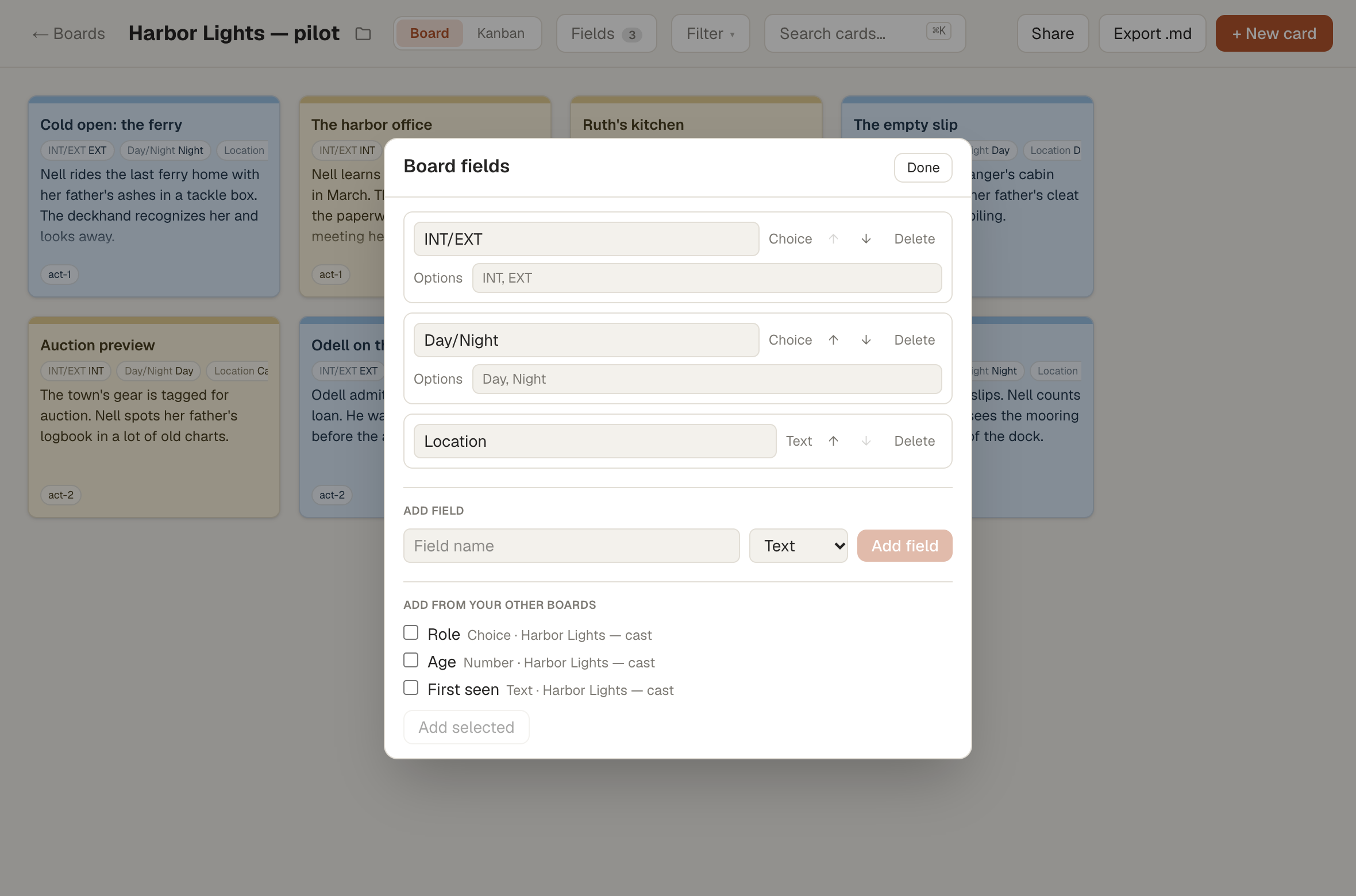
Add from your other boards
Already set up the perfect fields on another project? Under Add from your other boards, the dialog lists every field you've made on your other boards (archived ones included), with the boards each one comes from. Fields with a name the board already has aren't listed. Check the ones you want and click Add selected. Cork copies them in, Choice options and all, so you don't retype anything. The copies are independent: editing a field on one board doesn't change it on the other.
Filling in fields on a card
Open a card. Once its board has fields, a Fields section sits above the Tags tray, with one input per field. Type into text and number fields, pick from the menu for a Choice field, and choose a day for a date. As you type in a Text field, Cork suggests the values you've already used for it on this board, so Kitchen stays Kitchen from card to card. Everything saves as you go. To clear a value, empty the box or pick — from a Choice menu.
If you rename or remove a Choice option that a card is already using, the card keeps its value and the menu marks it "(removed)" until you pick something else.
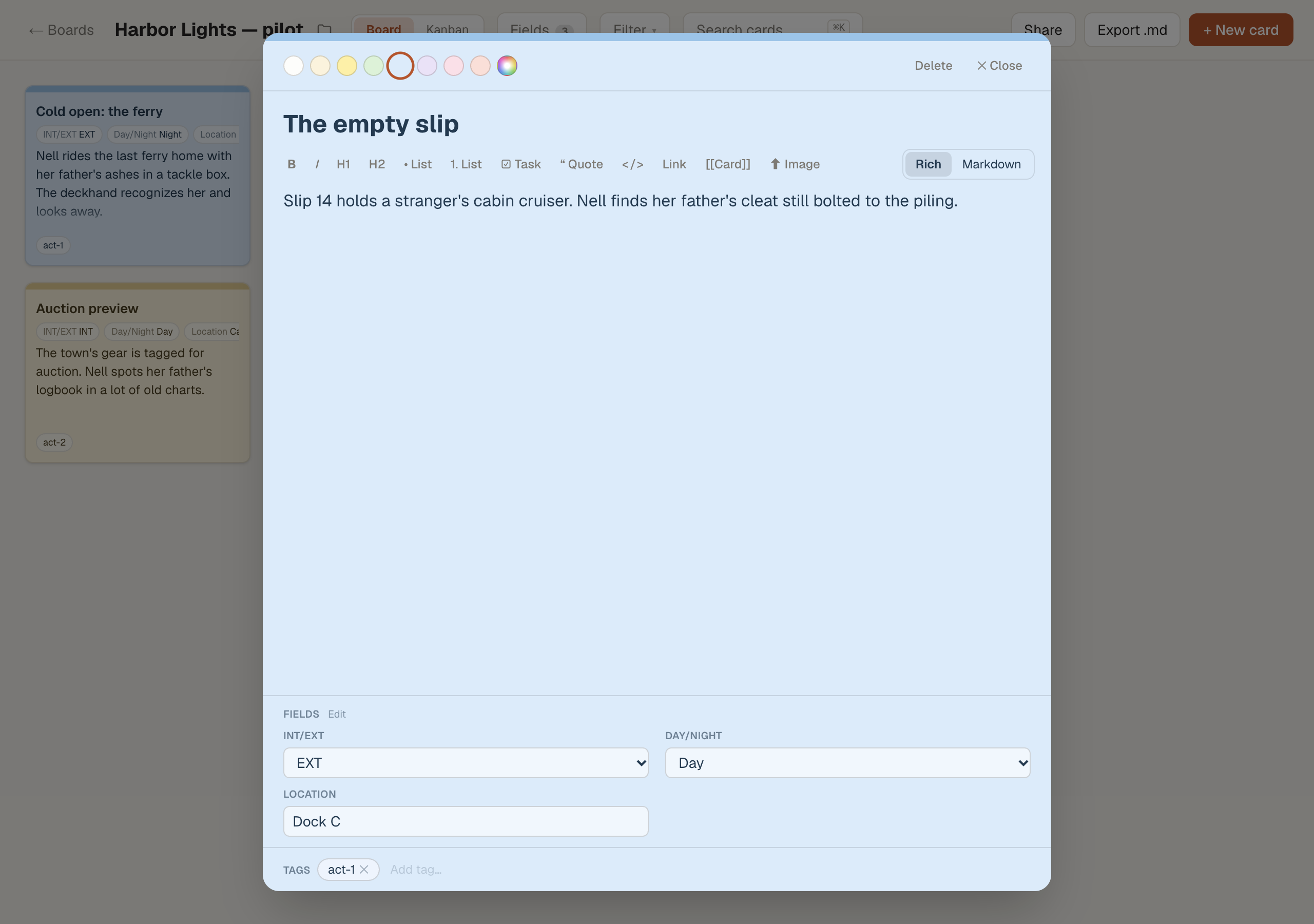
Fields on the card face
The values you've filled in appear as a thin line of small chips just under the card's title, in the same order as the board's fields: INT/EXT EXT, Day/Night Night. The line never wraps; if a card has more values than fit, the rest are cut off at the edge, and the card itself stays the same size. Open the card to see them all.
Filtering by a field
Once a board has a Choice field, or a Text field with a value filled in on at least one card, the Tags menu in the header becomes Filter. It still lists your tags, and below them each of those fields gets its own section:
- A Choice field lists its options, with a count of cards using each one.
- A Text field lists the values in use on the board, most used first, with their counts. Values that differ only in capitalization count as one. If there are more than eight, click Show more at the end of the section to see the rest.
Check values to narrow the board. Within a section, cards matching any checked value stay visible; across sections, a card has to match every section you've checked something in. Checking EXT under INT/EXT and Harbor under Location shows only exterior scenes at the harbor. As with tag filtering, dragging pauses while a filter is on, and Clear filter puts everything back.
Number and Date fields can't be filtered.
Coloring cards by a Choice field
If you already color cards by kind, like cream for quotes and blue for facts, a Choice field can do the coloring for you. Open Fields, and under a Choice field's options you'll see a small circle next to each option. Click a circle to pick a color for that option. The palette has the eight standard card colors plus any custom colors saved on the board. You can set colors while adding a new Choice field, too: the circles appear under the options as you type them.
Once an option has a color, picking that option on a card recolors the card. Changing an option's color recolors every card on the board that uses it. Setting an option back to No color takes that color off the cards using it, and they return to plain white. The same happens on a single card when you switch it to an option without a color or clear the field.
One field per board sets card colors. While one field has colors, the circles on the board's other Choice fields are turned off; clear every color on the first field to use a different one. You can still recolor any card by hand from its color dots. A card you've recolored by hand keeps that color when its option loses its color, and changes again only when you pick an option with a color or that option's color changes. Folder default fields can carry colors too, and they come along when a board moves into the folder.
Searching field values
Search (⌘K) looks through field values too, so typing harbor finds every card whose Location is Harbor. Each result shows the field that matched. Searching for a field's name, like location, doesn't match on its own.
Folder default fields
If every board in a folder should share the same fields (every episode of a series, say), set them on the folder. On your boards page, click the ⋯ button beside the folder's name and choose Default fields. The dialog works the same way as a board's.
When you move a board into the folder, by its Move menu or by dragging it onto the folder, Cork adds any default fields the board doesn't already have. A default is skipped when the board already has a field with the same name, even if the types differ; the board's own field is kept as is. Fields the board already has are left alone, and boards that were in the folder before you changed its defaults aren't touched.
Fields in exports and shared boards
When you export a board, each card's filled-in fields appear on one line under its tags: INT/EXT: INT · Day/Night: Night.
On a shared board, viewers see the field chips on the card faces and a short list of field values when they open a card. They can't edit them.
Ideas by kind of writer
- Screenwriters: INT/EXT and Day/Night as Choice fields, plus a Text field for the location.
- Novelists: POV as a Choice of your viewpoint characters, and Act as a Choice of Act One, Act Two, Act Three.
- Memoirists: Year as a Number, and Person as a Choice of the people who appear most.
- Students: Source as a Text field for the citation, and Claim as a Choice of the argument each note supports.