Presenting a board one card at a time
Walk an editor, a writing group, or a class through a board one card at a time, with large type and large images, from your board or a share link.
Presentation mode shows a board's cards one at a time, filling the screen, with large type and large images. Use it to talk a writing group through an outline, pitch a structure to an editor on a call, or read your own plot back in order without the rest of the board competing for attention.
Presentation mode is included with the Starter plan and above.
Start a presentation
Open the board, click the More board actions button (⋯) in the header, and choose Present. On a phone, tap More in the bar at the bottom of the screen and choose Present. The presentation starts at the first card.
If the board has no cards yet, Present is unavailable.
The order of the cards
The presentation follows the view the board is in when you start it:
- Board goes row by row, left to right and top to bottom. Cards in a stack are presented in order starting with the top card.
- Kanban goes column by column, top to bottom within each column.
- Timeline follows the timeline's order, column by column. Cards you've hidden on the timeline are skipped.
To change the order, rearrange the board or switch views before you start the presentation.
What each card shows
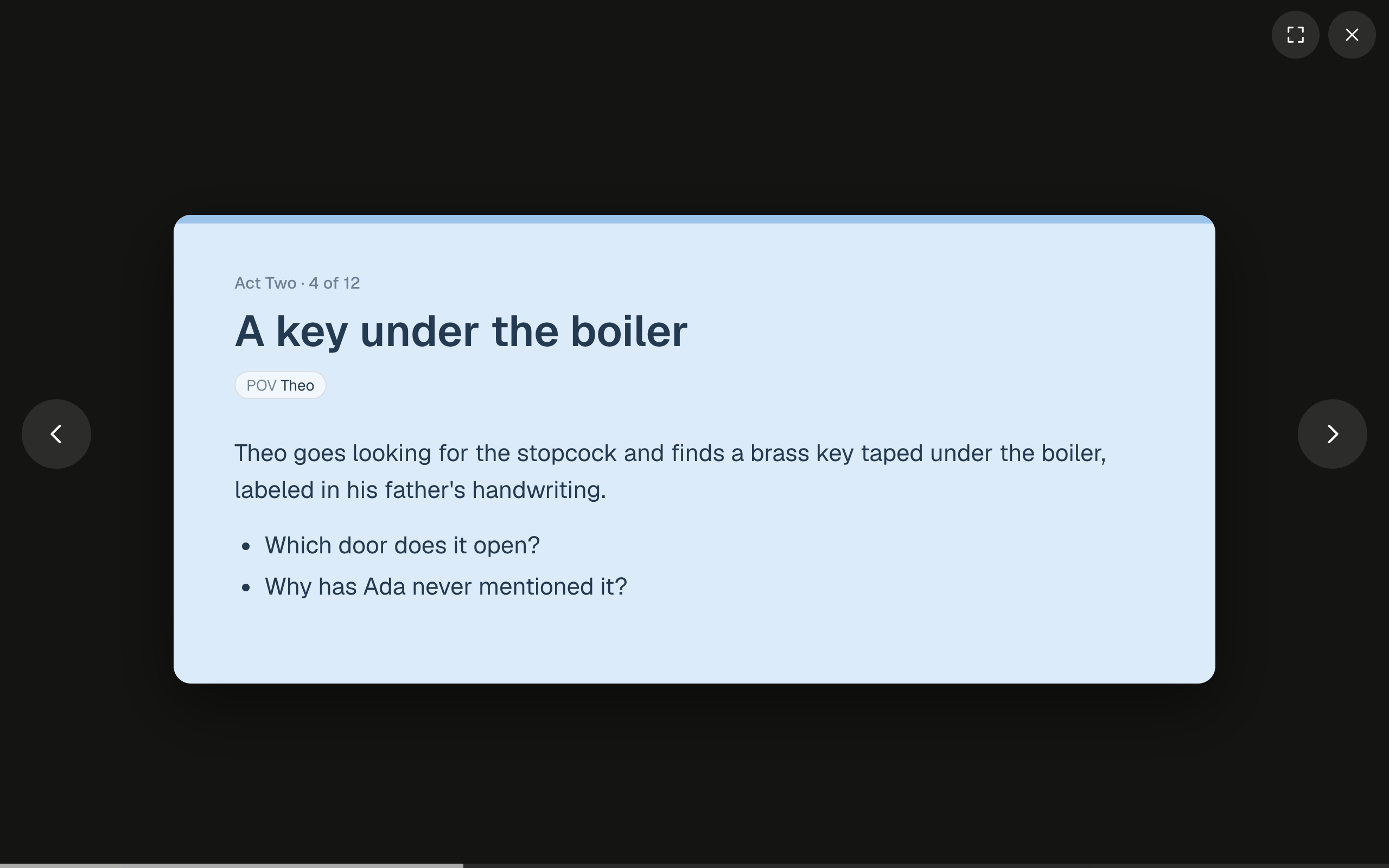
Above each card's title are the current number and the total number of cards (like "4 of 12"). When the board has more than one column in Kanban or Timeline, the column's name is also shown (like "Act Two · 4 of 12"). Below the title are the card's field values and tags, then its full text.
A card that holds nothing but images shows them as large as the screen allows. Card links jump to the linked card inside the presentation, and web links open in a new tab.
Moving between cards
You can use the keyboard, the on-screen buttons, or a swipe:
- Next card:
→,↓,Space,Enter, orPage Down. - Previous card:
←,↑,Shift+Space, orPage Up. - First and last card:
HomeandEnd. - On screen: the Previous card and Next card buttons at the sides (in the bottom corners on a phone held upright).
- On a touch screen: swipe left for the next card and right for the previous one.
A thin bar along the bottom shows how far through the board you are. On a computer, the buttons fade out after a couple of seconds without mouse movement and come back when you move the mouse.
Full screen and leaving
Press F, or click the Full screen button at the top right, to fill the whole screen. This option appears when your browser supports full screen. Press F again, or Esc, to leave full screen.
To end the presentation, press Esc (a second time, if you're in full screen), click the Exit presentation button (✕), or use your browser's back button.
Presenting from a share link
You can let someone else run the presentation, or open it yourself on another device, through the board's share link. Viewers don't need a Cork account, and shared presentations are read-only, just like all share links.
- Send a presentation link. Open Share and, once the board has a share link, click Copy presentation link. That link opens the shared board straight into the presentation, at the first card.
- Start from the shared board. Anyone viewing a share link can click Present at the top of the shared board to start the presentation.
On a shared board, the cards follow the view the board was saved in, the same as when you present it yourself. Presenting from a share link works when the board's owner is on Starter or above. If you move to the Free plan, your share links keep working as ordinary read-only boards, without presentation mode.